For many years I had the idea to start my own blog and share some of my experiences as an IT guy with the world. Some of my (former) colleagues have been running their blogs for years and a couple of them have become well known names in the IT industry.
Around the time the internet became available, I started working as an IT professional. At first I worked in computer hardware, from 1994 until 1998. Than I switched to IT services in many variants.
In my work through the years I’ve made use of information many others posted on their websites. In many cases, I used that information as pieces of a puzzle that created the solution to the ever reoccurring challenges you experience as in IT professional.
In my blog posts, I want to publish information about the challenges I face and the solutions I come up with. More specific to the problems I face, less general, but you might find the pieces your are looking for as parts of the puzzles I’ll lay out.
Looking towards Eindhoven from the Gulberg hill
I do like to ride my mountain bike on the many routes that are available around the town of Lieshout I live in. Every now and then I’ll make some pictures as the one seen above. I’ll use these to illustrate my posts.
Lieshout is situated about 14 km on the north-east side of the city of Eindhoven in the Netherlands.
On November 8th 2022, Microsoft released a number of updates in the monthly patches. Several issues in Kerberos should be fixed, but the update also creates issues with Kerberos in some circumstances. The update including the issue mentioned below is KB5019964 (server 2016) and potentially KB5020023/KB5020010(2012 R2), KB5019966 (server 2019), KB5019081 (server 2022). I left out the earlier Windows versions you shouldn’t be using anyways.
One of my main customers, a large financial institute in the Netherlands, uses quite strict security requirements and a while back we configured all user accounts to use AES128/256 only for Kerberos authentication.
In the update released on November 8th, several new registry keys are introduced for domain controllers. One of these allows you to set a default value for domain wide authentication protocols, but the default value and the behavior if the setting is absent, allow anything BUT AES based encryption. The exact opposite of what the update is supposed to do…
I’m still working on the details, for now I can only conclude the following:
KB5021131, which relates to a part of the supposed Kerberos improvements, describes the creation of:
This default value AND the behavior if the registry is not set, seems to cause the issue. The value is based on a bitmask, allowing certain encryption types and deselecting others:
Hex value (bit address)
Kerberos Encryption
Strength
0x1
DES_CBC_CRC
—
0x2
DES_CBC_MD5
—
0x4
RC4_HMAC_MD5
–
0x8
AES128_HMAC_SHA1
+
0x10
AES256_HMAC_SHA1
++
0x20
Future encryption types (The Microsoft article mentioned above includes a link that describes these future types in more detail)
Additionally, this setting seems to not adhere group policy settings related to Kerberos encryption types (Network security: Configure encryption types allowed for Kerberos)
This hexadecimal value (0x27) explicitly excludes the usage of AES128 and AES256 (selects all others), leaving only the protocols you should not be using anymore.
When user objects have been configured to use AES128 and AES256, no supported encryption type remain, and logons will fail. This might even lock you out of AD, when all administrative accounts are set to only allow AES and all domain controllers are patched before settings are corrected.
Create or change the above registry setting with a value of 0x1C (RC4, AES128, AES256) or 0x3C (same but with future encryption types) will at least block the very unsafe DES variants, or better use 0x18 (AES128, AES256) or 0x38 (same but including future types) for acceptable levels of security, depending on your companies’ policies. This last setting however requires AES settings to be enabled on your user accounts! Make sure you verify the ms-ds-SupportEncryptionTypes setting on user objects first.
Fortunately, we found out after some of the domain controllers got the update and things partially went south.
Workaround would be to allow RC4 for the user objects by change the user attribute ms-ds-SupportEncryptionTypes. When AES128 and AES256 are selected via the graphical interface, this attribute would contain a decimal value of 24 (0x18). Change it to 28 (0x1C) to also support RC4.
Remember that the workaround would decrease security, as AES is effectively no longer used because of the issue the update introduced.
Recently I was attempting to replace the operating disk in one of my Hyper-V hosts in my home datacenter.
During that operation, I intended to migrate from a rather small SSD drive, to a mirrored set of 1 TB SATA SSD drives left over from an older storage server.
My guess was I could easily setup an operating system partition mirror to one of the new SSD’s, than remove the original SSD drive from the mirror and replace that drive with the second 1 TB and included it as a mirror. Unfortunately, I selected the C partition for the mirror operation, converting the disks to dynamic and excluding the two small recovery and EFI system partitions, rendering the system unbootable.
It took me quite a while to recover the OS partition from the original disk, converting it back to basic etc. Long story short, I got the OS booting again after fiddling a lot with Hirens BootCD tools and the Server 2019 recovery tools.
The server booted normally, everything seemed to work, except, I was unable to move the VM’s from my secondary hyper-v server, claiming incompatible hardware, while both servers use identical components.
Error message:
“The Virtual Machine cannot be moved to the destination computer. The hardware on the destination computer is not compatible with the hardware requirements of this virtual machine”
I tried to move one of the VM’s in a powered off state. The move operation now is successful, but I cannot start the VM with the message:
“The Virtual Machine could not start because the hypervisor is not running”
Services however are running normally. When checking for additional info, I found information about DEP being disabled etc. That however was not the case.
The cause of the issue was the rebuild of the bcd boot configuration during the recovery of the system partition.
When running bcdedit on a command prompt on both the recovered and still running hyper-v host and comparing the entries, it showed this line was missing:
When you use VMware view for providing VDI desktops, you probably use the VMware OS Optimization Tool (OSOT) to improve the performance of the desktop.
This tool takes quite some shortcuts in optimizing, blocking a lot of basic functionality which you might find handy. Most things can be re-enabled quite easily, but recently I’ve run into an issue with the thumbnail view in Windows Explorer, which proved to be quite a challenge to get re-enabled.
The thumbnail view in Windows Explorer can particularly handy when using photo’s. One of my customers did use this functionality and with his refreshed desktop (upgraded to a new build of Windows 10 using a new image optimized with the OSOT tool), he missed this functionality.
The documentation of the OSOT tool does not describe (or at least I was not able to find any usable details) what setting is actually changed to disable the thumbnail view. When searching the internet you will find a lot of useful articles describing how to enable or disable the thumbnail view. This can be achieved in a lot of ways, but almost all of the have in common that they are user level settings, not computer settings.
Every article I run into when trying to get to the bottom of this issue, covered only the user settings. Even the group policy settings you have available in Windows only cover user level settings related to the thumbnails.
As you can guess from my previous description, the OSOT tool disables thumbnail view using a computer level setting. When looking at the registry key that has been used, it looks like an ordinary group policy settings, except it is not listed in the Group Policy references sheet, nor within the group policy settings.
So when trying to re-enable thumbnail view in Windows explorer, for instance after running the OSOT tool, use the following registry key to get thumbnail view working again:
In case you want to disable thumbnail view, of course you can use the value 0x1
As this is a local machine setting, this setting will have effect on every user on the computer involved. A lot of other settings are available on a user level, but as explained, lots of articles already cover those, so I did not include them in this article.
One of the effects you might see when this setting is enabled (so thumbnails are disabled using the above registry setting), when trying to enable the thumbnail view in the computers performance settings, you will see the option to enable thumbnail view and you are able to select the option, however, when you check the settings directly after changing it, you will see it is unchecked again. Using the above setting allows you to enable or disable it on a user level again.
This article is related to the Exchange Online migration article I recently posted.
The customer involved uses several Windows domains. For this situation, two domains are relevant. The primary domain is connected to Office 365 using an Azure AD Connect server. The second domain is also populated to Office 365 using the same AADC server. The organization also uses an ADFS server farm for the authentication for several services, including Office 365.
When a user from the secondary domain tried to authenticate, he or she can only do that by specifying the full samaccountname as a username, including the domain portion of course, otherwise ADFS would be unable to locate the userdomain.
Using a UserPrincipalName, authentication for users from the secondary domain fails via ADFS.
A key thing to note here, the upn suffix in use by the users differs from the internal domain FQDN. When migrating to Exchange Online, you will want to have the UserPrincipalName equal to the primary SMTP address of the users. Practically, that will include custom upn suffixes being registered in Active Directory and users not having the default upn suffix in place.
Users in the primary domain can authenticate regardless of the upn suffix used in their upn.
The solution to this issue, is in the domain trust settings.
You will need to enable Name Suffix Routing for the upn suffixes in use:
Open Active Directory Domains and Trusts
Right click your domain, select properties
Open the Trusts tab
Select the trust involved (Outgoing or Incoming is not relevant)
Click op Properties
Open Name Suffix Routing tab
Select the upn suffix you want to use for authentication via ADFS
Recently, in a small customer setup, I’ve experienced very poor performance on new HP computer hardware.
This customer used 6 new HP computers, connected to a small scale Office365 tenant.
Users logon to their computers by using their Microsoft account.
As an anti-malware product, Trend Micro Worry Free Business Security Services with Cloud App Security option.
The workstations use the default installed Windows 10 Pro installation. This installation includes HP Sure Sense.
Seems that having both Trend Micro anti-malware software and HP Sure Sense active at the same time, reduces the computer performance to an unworkable level.
Solution is to remove one of these products, to no longer have them both active. In this case the Trend Micro product is a paid product, the HP software has been removed.
This article is based on a migration project I’m currently working on for a large financial company in the Netherlands. In total, we had to migrate around 10000 mailboxes. Because we wanted to keep effects for the users a minimum, I’ve written a migration script that fixes all functionality that gets broken by default when performing a migration.
Microsoft has fixed some of the broken functionality in some upgrades to Exchange Online released around April 2019, but still a lot of functionality is negatively effected when migrating to Exchange Online, using the hybrid migration scenario. All other scenario’s will have an even larger impact on the user population and will normally not be used in a migration of an Exchange organization of more than maybe 50 mailboxes anyways.
The information that I will add to this article can be found on other websites as well, but not all in one spot, including solutions to almost all of the issues you will face.
Situation
This article is based on a migration from Microsoft Exchange 2010, to Exchange Online. The source setup is based on two separate Exchange 2010 organizations, one based in the Netherlands and a second one for the US and Asia locations.
Both Exchange organizations operate in different AD domains, as you cannot have two organizations with a single forest.
The domains do have trusts in place and make use of Quest Collaboration Services, to synchronize the Global Address list and Free busy information.
QCS creates disabled user accounts in the domain of the opposite Exchange organization.
These disabled user accounts are setup with a limited set of attributes. The objects in the Dutch setup, representing the US and Asia accounts, are also in use for the Skype for Business setup, that is only running in the Netherlands, for all employees.
Security is very important and neither Exchange nor Skype are exposed to the internet, except for the Microsoft Azure and Office365 systems required for the Hybrid setup.
ADFS is in use and access is limited to internal clients, or clients that use VPN connections. Azure AD Connect is in use to synchronize a limited set of Organizational Units from the AD domains in both the Netherlands and the international domain. QCS objects are some of the objects excluded from this synchronization, as they would conflict with the objects synchronized from the international domain.
So this is not a ‘simple’ lab setup but an actual, rather complex production environment.
What breaks
Recipient Display type
When you migrate a mailbox toward Exchange Online, by default the recipient display type setting the user object on-premises will get set, does not allow on-premise mailbox users, to grand the migrated user any permissions any more.
This results in a broken functionality. Part of the permissions that were set in the past will continue to work, some settings will need additional repairing covered in the other section that follow, but on-premises users can no longer assign permissions to a migrated mailbox in folder permissions for instance. The user object can no longer be found in the address list.
This can be repaired by changing the recipient display type to an acl-able object variant.
Depending on the type of mailbox object that is being migrated, a new recipient type display setting should be set.
The actual attribute setting is a fairly long numerical value, representing the type of mailbox coupled with the AD user object. The table below lists the setting the user object will receive by default and the setting it needs to be changed to, to recover the normal functionality:
Default migrated setting
Corrected setting
Mailbox type
-2147483642
-1073741818
Mailbox user
-2147482106
-1073740282
Remote Mail user
-2147481338
-1073739514
Contact
Practically you will almost always see the Mailbox user object of course, as the other objects will normally have no mailbox connected.
If however you need to be able to assign permissions to contacts or remote mail user objects that have an on-premises AD object, the contact and remote mail users object might turn out to be relevant after all. In Powershell I’ve used the below command to first get the AD object by using the UserPrincipalName (included in the variable $upn) and then setting the corrected value:
To be able to limit the number of corrections to only the applicable situations, I’ve created a filter first checking on the current setting for the user at hand. This will also allow for the script to be rerun, in case it’s execution would get interrupted for some reason, and then only attempt to correct user objects not set correctly.
Specially in migrating large batches of mailboxes, a script monitoring the migration process might take several hours to complete.
The environment I’ve run the script in, uses strict timeout settings for RDP sessions, potentially interrupting the script before it completes.
Recently I visited the New York office of the customer this article is about, to get their Exchange organization in a hybrid state with the shared Office365 tenant. That gave me the opportunity to visit this city and make some nice pictures.
Send As permissions
When working in a hybrid setup for a longer period of time, or just in the migration phase, Send As permissions is one of the main functionalities that break.
The problem in Send As permissions is that they are maintained on Active Directory level in Exchange on premises and not actually in Exchange attributes. The Send As permission is not synchronized to Exchange Online and thus breaks in the migration or hybrid process.
However, send as permissions can be set on both ends. You have to look at Exchange Online as a separate Exchange organization. Send as permissions for cross premises objects need to be defined on both ends. Or actually, the location of the actual sender needs to be aware of the send as permissions this sender has on other objects.
The most easy way to look at this, is double administration of send as permissions. When you assign someone send as permissions of another mail object, you define it on both on-premises Exchange and Exchange Online.
One additional thin to keep in mind, when defining Send As permissions within Exchange Online, for on-premises Exchange objects, every single SMTP address present on the on-premises object, needs to use a domain name that is registrered as an accepted domain in Exchange Online, not just the default reply address!
Problem solved
How to fixed it during migration?
You could of course do this manually for each user, but I’ve created two scripts. One script that will perform the mailbox migration and several check up front, monitor the migration, corrects the several functionalities that break and several checks after the migration. It finally generates a report for each migrated mailbox. A second script reads the send as permissions setup on-premises and replicates these settings to Exchange Online and visa versa.
In the below PowerShell Example, $MailboxIdentifier determines the mail object who’s address will be used in the Send As operations. This will be a remote mail object from the perspective of the Exchange Organization. $UserIdentifier determines the user who’s granted permissions to execute the Send As permissions. This will be a user object local to the Exchange Organization the command is executed againts.
When migrating a user mailbox to Exchange Online, you need to watch both other objects having send as permissions on the migrated mailbox and the permissions the migrated mailbox owner has on other mailbox objects. Corrections need to be made in two directions to keep the functionality working in both ways.
View over Manhattan from the Rockefeller center “Top of the Rock” observation deck
Send on behalf
Send on behalf permissions actually are synchronized. The migration script I’ve used in the migration process verified these permissions before and after the mailbox migrations and I can acknowledge these permissions stay intact during migration, so no need for corrections, as long as the object granted with the permission is available online!
We have seen send on behalf permissions granted to AD groups that are not synchronized. These will break as the group object is not available in Exchange Online.
Another situation that will break these permissions is when the permission is granted via a group that is not mail enabled. Again that group object will actually not be available in Exchange Online, despite it being synchronized to Azure AD.
I’ve added a section to my migration script, that will test the group synchronization status and check if it is mail enabled. If it isn’t available in Exchange online for either of these reasons, I’ve expanded the group and assigned the permissions directly to the users.
This same process can also influence other permissions like send as and full access. Folder permissions are less likely to have been assigned to a group that’s not mail enabled, but it could still be a group outside of the Azure AD Connect sync scope.
SentItemsConfiguration
The mailbox settings for how to process sent items, is not synchronized to Exchange Online. If you have for instance a shared mailbox that you have setup to copy the sent items to the shared mailbox’ sent items folder using the Exchange setting MessageCopyForSentAsEnabled or MessageCopyForSendOnBehalfEnabled, these settings will get lost in the migration.
The functionality is available in Exchange Online just the same, so this can easily be fixed to reapply the desired settings once the mailbox is migrated.
Keep in mind this functionality can only work when both mailboxes (the mailbox that is actually sending a message and the mailbox who’s address is being used) are located in the same Exchange Organization. During the time-span only one of the mailboxes is migrated to Exchange Online (the obvious default objective in a hybrid migration scenario), this functionality will be broken!
The reason the functionality will not work when mailboxes are spread over the federated setup is simple, federation between Exchange Organizations is limited to mailtransport, address list synchronization and availability information. MessageCopy settings are not transport based and cannot be executed.
Resetting the MessageCopy setting on Exchange Online will only fix the functionality, as soon as both mailboxes involved in the MessageCopy process have been migrated.
Of course I’ve included this correction in the migration script I’ve used.
View from the ‘High Line’ decommissioned railway track
Full Mailbox Access
The full mailbox access permissions will normally survive the migration process, but this does depend on how the permissions are assigned. If the permissions are setup using a group which is either not synchronized, or is not mail enabled, the functionality will break.
When fixing the permissions, you will also need to be aware of automapping. When assigning Full Access permissions in Exchange 2007 and up, by default you will also enable automapping. On older versions of Exchange, automapping did not exist. Automapping is actually processed by a different attribute in AD (MSExchDelegateListLink) compared to the Full Access permission. When making corrections to full mailbox access, you need to take the automapping setting into consideration.
In this perspective, it’s very unhandy that Exchange Online does not offer a way to determine if automapping is setup for a certain mailbox. You can disable automapping only when granting full access, but after that, you can only observe if automapping is actually enabled or disabled, by using Outlook.
FolderPermissions
Folderpermissions are a bit special when migrating to Exchange Online. Generally, they will continue to work, but I’ve also seen many mailboxes that are missing some of the permissions that were granted before the migration.
In my experience, this is more related to some user objects that loose permissions on other mailboxes than mailboxes losing the permissions.
However I was unable to determine why some users will loose the permissions to other mailboxes.
Inside my migration script I included a section to export all folder permissions set on source mailboxes and checking the permissions are still in place after the migration has finished.
Again, permissions assigned to groups or other objects outside the scope of AzureAD connect, will not function. The SIDs however are still in place, so adding a an object in scope of AADC, should re-enable the permission.
Besides permissions completely missing from a mailbox, I’ve also seen permissions being changed during the migration, specially on calenders. Most of the times, the permissions ended up to be more strict.
Another thing to keep in mind is the actual usage of folder permissions in a hybrid setup.
Again the calendar permissions are the ones that need some comment.
Permissions assigned to the Default special user, remain intact. But read permissions granted to individuals, are limited to the default setting. For instance you might have granted Default the availability only level of read permissions and a colleague you granted the level of limited details. In that case, that particular colleague can only see you availability and not the limited details he is granted, as long as the colleagues mailbox is still located on-premises. As soon as his/her mailbox is migrated as well, the permissions functionality is restored.
The same applies to full details read permissions.
If you have granted someone with some for of write permissions, those will stay functionally intact during the migration, as long as the permissions were not effected by the permission disappearance covered before off course.
Forwarding
Forwarding settings on mailboxes also need attention during the migration.
You can enable forwarding in several ways on a mailbox. I’ll be focusing on the actual forward settings you have available on the mailbox object itself. Forwarding setup in rules or out of office settings, will continue to work.
There is a little difference in the way forward settings are made in Exchange Online.
In my migration script, I’ve included a section to check on the current forwarding setting and make the same setting active in Exchange Online.
The way forwarding works in AD, is defined using the attribute DeliverToMailboxAndForward .
The address used in forwarding, is defined in attribute ForwardingAddress
Microsoft made this one not easy to compare, as the forwarding address in Active Directory is recorded in the CanonicalName format.
You cannot use that format in setting the forwarding setting in Exchange Online, and you can neither use that format to directly resolve the corresponding AD object that the forwarding session.
So before being able to make any corrections, you first need to translate the old attribute contents to the distinguishedname format, as that can be derived from the Canonical name format. Than use that format to resolve the actual AD object, get the address of that object and then finally you are able to set the forwarding address.
I’ve used a Powershell function I found online to do the translation from canonical name to distinguishedname.
Retention policies
In Exchange On-premises and Online variants you can define retention policies.
Policy associations will not be kept during a migration. So even if you created the same policy settings with the same names, the policy associating of a migrated mailbox will break.
If you need to keep the policy association in place, you’ll need to set the required association again for those mailboxes.
MessageSizeLimits
Settings for MessageSizeLimits do survive the mailbox migration. Despite that, it still might require some attention.
In our migration case, the mailboxes originated from three former Exchange organizations back in the Exchange 2003 days. They did not use the same limitations on messagesize limits. During a period of several years, great variations existed in messagesize limited between servers, even inside the same organizations. In Exchange Online, a maximum message size can be defined of around 150 MB.
If you currently have messagesize limits in place that are more strict than in the past, you might have oversized items in your source mailboxes.
Depending on the actual maximum size of the messages in your mailbox and the current message size limits, you might need to increase the message size limits to allow for the migration of the source mailboxes with all content intact, or you might even run into the situation the you are forced to instruct users to remove certain large messages from their mailboxes, as they are larger than the maximum definable limit of just over 150 MB. That was the situation we ran into.
You can help your users a bit by creating some mailbox folder statistics export to identify the folder that contains the oversized item(s).
Mobile Device registration settings
The migration this article is based on, used MobileIron as a mobile device management solution.
To be able to associate the migrated mailbox with a different MobileIron Sentry server, we had to clear a specific user attribute for mobile device association: msExchMobileMailboxFlags
This is rather a simple solution to execute, simply clear the current value of this user attribute.
To be able to connect the user object to the MobileIron Sentry for Exchange Online users, we’ve used an AD group. This group is connected to the correct policy settings for Mobile Iron.
Included in the migration process, we’ve also switch the users from using the native mail app (this customer almost exclusively used iOS devices) to using the Outlook for iOS client.
As we needed a way to guarantee online managed devices are able to access a mailbox, we’ve also included a VPN requirement in the MobileIron policy, so every connection attempt originates from the company set of external IP addresses.
We’ve added an address filter on the ADFS setting, to only allow known public IP addresses to authenticate towards Exchange Online.
Journaling replacement
Using journaling in Exchange Online is limited compared to Exchange On-premises solutions. You can only use a limited number of journaling rules.
Our On-Premises setup of journaling consisted of a 1 to 1 relationship for usermailboxes and journal mailboxes. This setup makes it very easy to determine which journal mailbox to examine in case of an ediscovery case.
As this setup can not be used maintained, we’ve switched to using Litigation hold.
There is a difference in the way this works from a technical standpoint. For instance all data will continue to exist in the actual user mailbox, for the period specified in the hold period setting.
One advantage is it could also be used as a restore method.
A disadvantage is, the hold capacity is added to the mailbox size. Exchange Online mailboxes can be rather large, up to 100 GB at time of writing, but this does include the capacity used by Litigation hold, but the capacity reported to the user in Outlook does not include this.
You need to keep an eye on extreme mailbox sizes and enable archiving for the in a timely fashion.
Depending on the licensing you use in Exchange Online, the mailbox limit might be lower and archiving might not be an option. Change to a higher license level if capacity is might become an issue.
Another thing to keep in mind, hold settings are only applied to items when they are created in the mailbox. So a hold setting will only be associated with message that are send or received after the hold settings becomes active. Historic items will not be included.
This also means that when you need to change the hold policy, the previous policy setting will still be active for the items that were created/received under that policy. Removing someone from a litigation hold setting, will therefor keep all previously created items under that old hold setting. This is normally exactly what you want, but you need to keep this process in mind.
Reports
The final step I made in the migrations script, was to generate a report for each migrated mailbox. This consists of the mailbox settings in place before and after the migration, including all corrections that might have been made to the mailbox.
First real tech blog post. This is a situation many of you have experienced in the last couple of years. You used to be able to connect to a server using RDP, in many cases a domain controller, but suddenly, that server can no longer be reached, but you did not change anything on the server.
This situation might also occur on other types of servers and for different protocols.
Most of the times, the server in question has recently restarted. This will probably be a rather small setup, as the cause of the issue is the unavailability of a domain controller at the moment the system starts up.
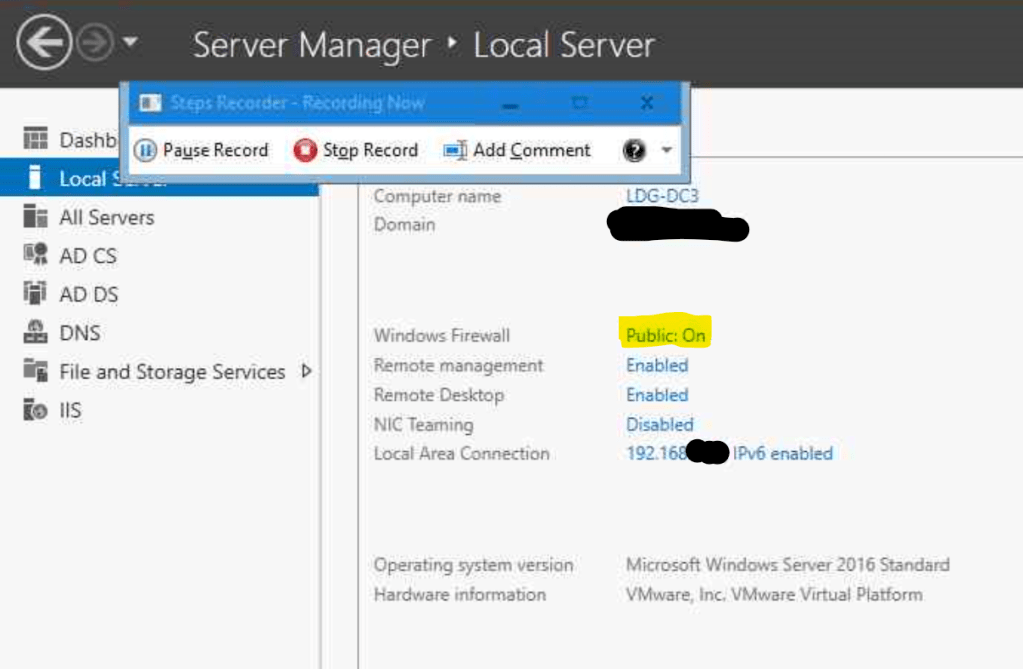
When a Windows systems starts up, it will try to detect the availability of a domain controller to determine which Windows firewall profile to use. When a domain controller cannot be found, it will most probably choose the public profile, which will normally not include all the firewall rules your configured. Typically RDP is only enabled on the domain profile, hence the issue with reaching the server using RDP.
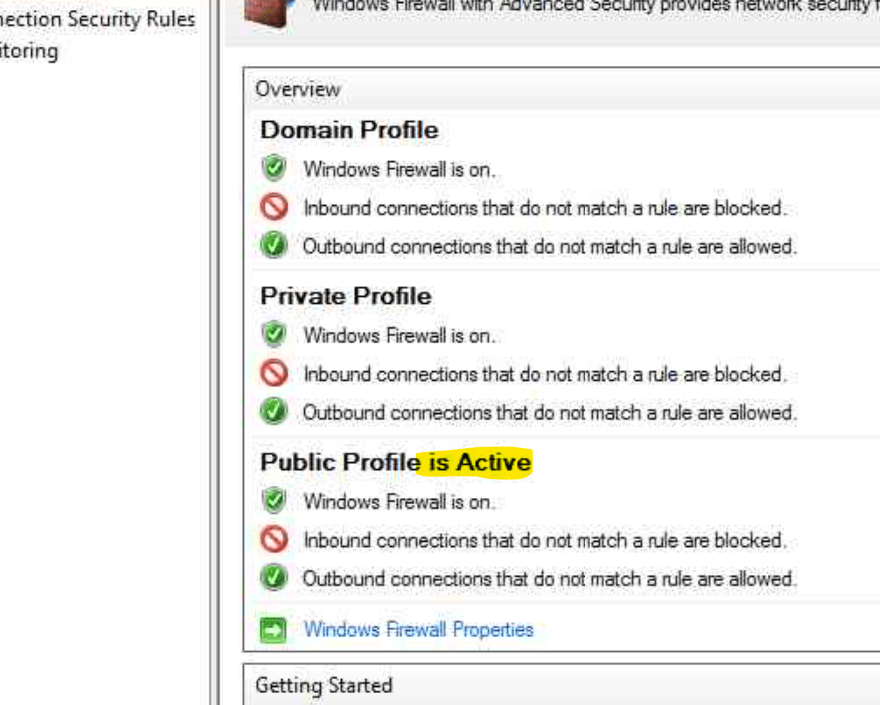
As can be seen above, the Public firewall profile is activeAnother way to see the Active Firewall profile is the Windows Firewall management tool
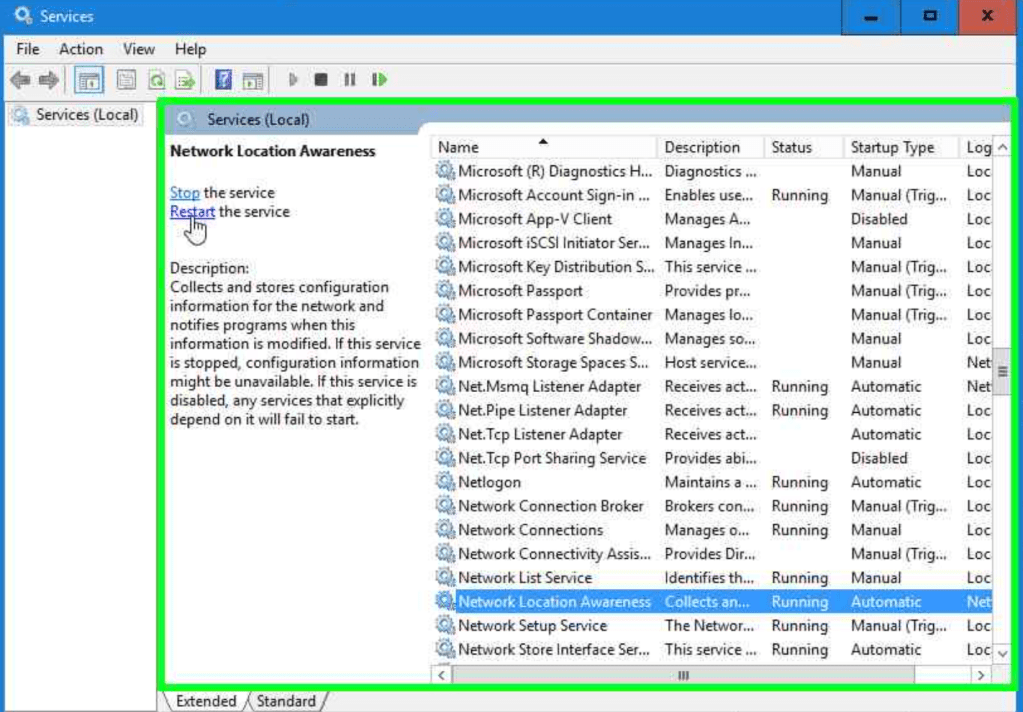
A little later, when the domain controller has been fully started, a different choice would have been made inside the election process, but this process only runs when starting Windows, or, when you restart the Network Location Awareness server.
That is the simple solution to this sometimes annoying issue, restart this service.
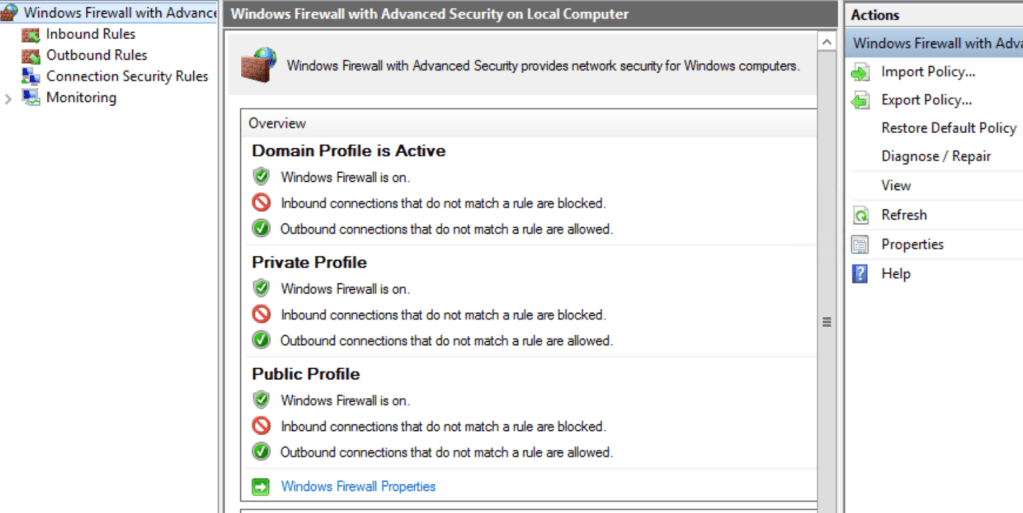
Directly the correct (domain) firewall profile will be selected and you server is reachable again.
Press Refresh and the Domain profile will be shown as the active profile
Why does this occur on domain controllers you might think? This is a combination of the timing of the location awareness process and the start-up of a domain controller. When no other domain controller is available, the local domain related services will in many cases start after the network location awareness service has been started.
This is also the reason a smaller environment is more likely to face this issue, for instance with only a single domain controller. It might also occur after a large power outage or fail-over/disaster recovery scenario, when all servers have been down or domain controllers have been unreachable at the computer’s boot time.
Because RDP access is not available until the network location awareness service has been restarted, you will need to find a way to restart this service either remotely, or using the server console. As most modern servers are virtualized, your hypervisor solution will be the first option to use console access. Depending on the firewall rules that are present in the public (or possible private) profile, you might also be able to restart the service using remote management tools or power shell
My name is Leo de Groot, I’m working in IT since 1994 and I was playing around computers ever since the very early eighties. Playing on a Sinclair ZX81 as a first computer, after that switched to MSX computers and finally ended up with PC’s around the start of the nineties.
I’ve been working as an independent, self-employed ICT professional since may 2007. Between 1998 and may 2007 I’ve worked for two ICT companies. Since 1998, I’ve worked for a large number of customers, on locations throughout the Netherlands. Sometimes just for a day, sometimes for several years on large projects.
Customers I work for vary in size of just a few employees, to many thousands. So my experiences in the ICT business have also varied accordingly. Some of it will not be very interesting to most of you, however I frequently face challenges that require solutions that many might find useful in one way or another.
If not useful for anyone, I still have some place to log the things I do and that in turn might be helpful just for my self in future projects and assignments.
Mountainbike path somewhere between Nuenen and Helmond
Beside being an IT nerd, I do like to think I have something like a personal life. I live together with my girlfriend for well over 20 years now, having a relation of 28 years. We have two kids, aged 9 and 12 at time of writing (late December 2019).
I like to ride my mountain bike through the region around my house (about 13 km north-east of the city of Eindhoven) and might write a couple of posts on these rides as well.
Finally I also like to visit a concert or festival when one of my favorite artists show up (check my Spotify playlist) and I’m an overall tech enthusiast so some home automation might also make it to a blog post.







 Leo's blog